> ## Documentation Index
> Fetch the complete documentation index at: https://docs.trymeridian.com/llms.txt
> Use this file to discover all available pages before exploring further.
# Pages
> Find and fix website issues that prevent AI crawlers from discovering, understanding, and citing your content.
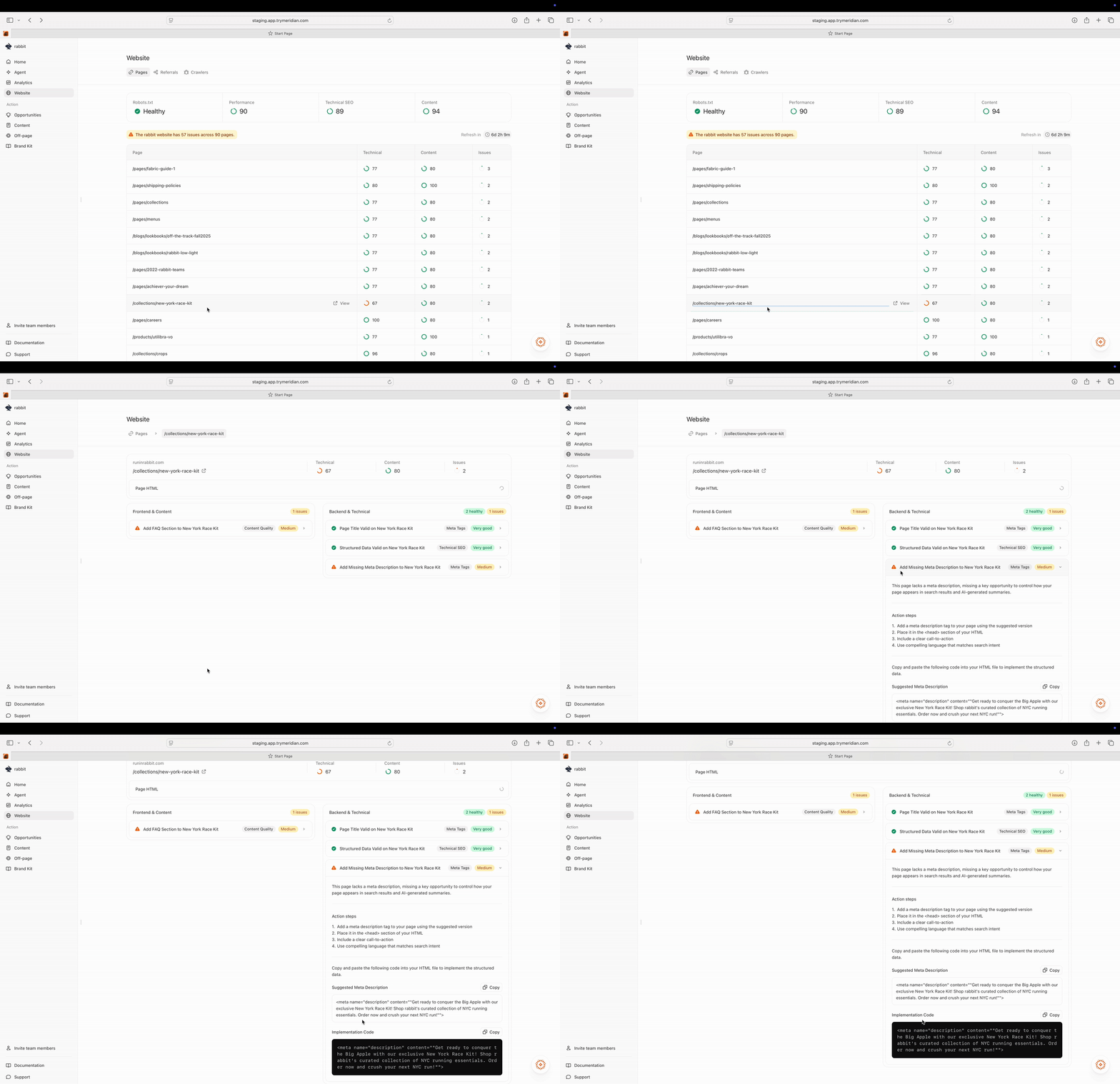
Pages is where Meridian analyzes your website the way an AI crawler would. On a weekly cadence, we crawl a set of your pages, check for technical and content issues that commonly reduce AI visibility, and give you clear, page-specific recommendations (including copy-ready drafts) to fix them.
 The number of pages we crawl depends on your plan. If you want broader coverage (more pages scanned each week), upgrade your plan or contact support.
## Why Pages matters for AI visibility
Even great content can underperform in AI answers if:
* crawlers can’t reach it,
* the page is hard to parse or summarize,
* or the information isn’t structured in a citeable way (clear headings, direct answers, FAQs, schema, proof).
Pages helps you improve all three. Fixing page readiness tends to improve:
* how often your pages are cited (owned citations),
* how stable your rankings are over time,
* and how confidently AI assistants can summarize your content.
## How the weekly crawl works
Meridian crawls your site weekly, similar to how AI crawlers fetch and analyze pages. The scan produces:
* updated site-level health signals (robots, performance, technical SEO, content),
* updated page-level scores and issue counts,
* updated recommendations and templates.
You may also see a “Refresh in …” indicator that shows when the next scan is scheduled.
## What you see on the Pages overview
### Health and readiness summary
At the top, Pages surfaces a quick snapshot across:
* **Robots.txt** (is crawling allowed?)
* **Performance** (page stability/speed signals)
* **Technical SEO** (metadata and structured data signals)
* **Content** (structure and clarity signals that affect citeability)
These are directional scores. They’re meant to help you prioritize where the biggest bottleneck is.
### Issues banner
You may see a banner like “X issues across Y pages.” This tells you there are concrete fixes available and helps you gauge how much work is in the queue.
### Pages table
The table is your execution list. It typically includes:
* **Page** (URL path)
* **Technical** score
* **Content** score
* **Issues** (count)
Use this to quickly identify:
* high-value pages that need work,
* template-level issues affecting many pages,
* and the best “first fix” opportunities.
## Technical vs content issues (both matter)
Pages surfaces two categories of recommendations because both can block AI visibility:
### Backend & technical
These affect whether crawlers can access and reliably parse your pages.
Examples include:
* blocked crawling (bot protection / WAF)
* missing meta descriptions
* invalid structured data
* broken titles/metadata
* canonical/noindex issues
* unstable pages
### Frontend & content
These affect whether your page is easy for AI to summarize and cite.
Examples include:
* missing FAQs (questions users and AI repeatedly ask)
* unclear headings that don’t map to intent
* missing “who this is for” and decision criteria
* weak proof for claims (no concrete details)
In practice:
* technical issues determine whether you can be used as a source at all,
* content issues determine whether you are preferred as a source.
***
## How to use Pages (practical workflow)
### Step 1 — Pick the right pages to fix first
Start with pages that are:
* core to your business (category hubs, product collections, pricing, trust pages, top guides),
* already relevant to tracked prompts,
* and have higher issue counts or low scores.
A good first week is usually:
* 1–2 “source pages” (category guide, pricing/trust, comparison hub)
* and 1 template-level fix if the same issue affects many URLs.
### Step 2 — Open a page to see its recommendations
Click a page row to open the page detail view.
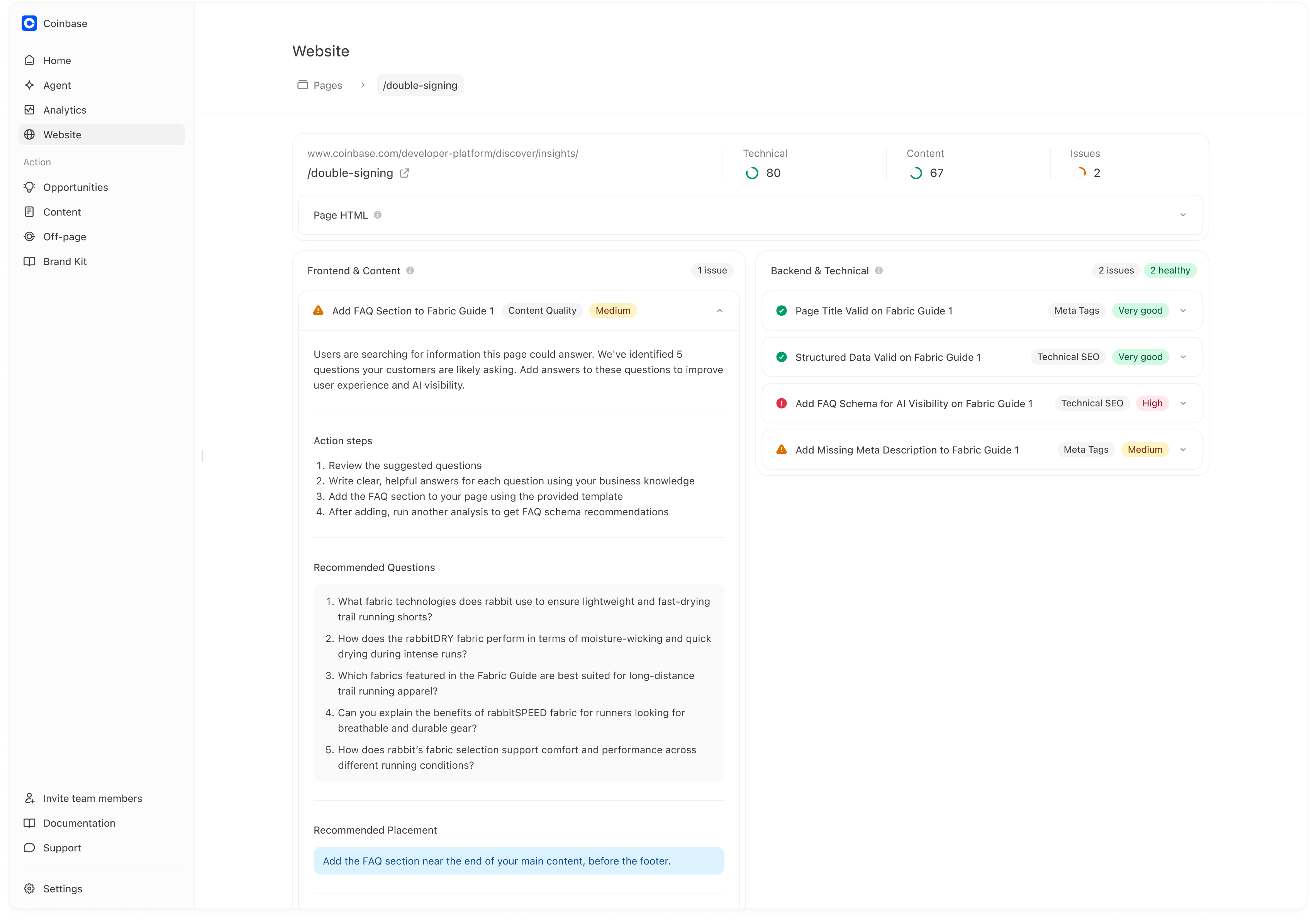
On the page detail view you’ll typically see:
* the page URL/path,
* technical + content scores,
* total issue count,
* and a split view of recommendations.
The number of pages we crawl depends on your plan. If you want broader coverage (more pages scanned each week), upgrade your plan or contact support.
## Why Pages matters for AI visibility
Even great content can underperform in AI answers if:
* crawlers can’t reach it,
* the page is hard to parse or summarize,
* or the information isn’t structured in a citeable way (clear headings, direct answers, FAQs, schema, proof).
Pages helps you improve all three. Fixing page readiness tends to improve:
* how often your pages are cited (owned citations),
* how stable your rankings are over time,
* and how confidently AI assistants can summarize your content.
## How the weekly crawl works
Meridian crawls your site weekly, similar to how AI crawlers fetch and analyze pages. The scan produces:
* updated site-level health signals (robots, performance, technical SEO, content),
* updated page-level scores and issue counts,
* updated recommendations and templates.
You may also see a “Refresh in …” indicator that shows when the next scan is scheduled.
## What you see on the Pages overview
### Health and readiness summary
At the top, Pages surfaces a quick snapshot across:
* **Robots.txt** (is crawling allowed?)
* **Performance** (page stability/speed signals)
* **Technical SEO** (metadata and structured data signals)
* **Content** (structure and clarity signals that affect citeability)
These are directional scores. They’re meant to help you prioritize where the biggest bottleneck is.
### Issues banner
You may see a banner like “X issues across Y pages.” This tells you there are concrete fixes available and helps you gauge how much work is in the queue.
### Pages table
The table is your execution list. It typically includes:
* **Page** (URL path)
* **Technical** score
* **Content** score
* **Issues** (count)
Use this to quickly identify:
* high-value pages that need work,
* template-level issues affecting many pages,
* and the best “first fix” opportunities.
## Technical vs content issues (both matter)
Pages surfaces two categories of recommendations because both can block AI visibility:
### Backend & technical
These affect whether crawlers can access and reliably parse your pages.
Examples include:
* blocked crawling (bot protection / WAF)
* missing meta descriptions
* invalid structured data
* broken titles/metadata
* canonical/noindex issues
* unstable pages
### Frontend & content
These affect whether your page is easy for AI to summarize and cite.
Examples include:
* missing FAQs (questions users and AI repeatedly ask)
* unclear headings that don’t map to intent
* missing “who this is for” and decision criteria
* weak proof for claims (no concrete details)
In practice:
* technical issues determine whether you can be used as a source at all,
* content issues determine whether you are preferred as a source.
***
## How to use Pages (practical workflow)
### Step 1 — Pick the right pages to fix first
Start with pages that are:
* core to your business (category hubs, product collections, pricing, trust pages, top guides),
* already relevant to tracked prompts,
* and have higher issue counts or low scores.
A good first week is usually:
* 1–2 “source pages” (category guide, pricing/trust, comparison hub)
* and 1 template-level fix if the same issue affects many URLs.
### Step 2 — Open a page to see its recommendations
Click a page row to open the page detail view.
On the page detail view you’ll typically see:
* the page URL/path,
* technical + content scores,
* total issue count,
* and a split view of recommendations.
 ## Understanding the page detail view
### Page HTML (what the crawler sees)
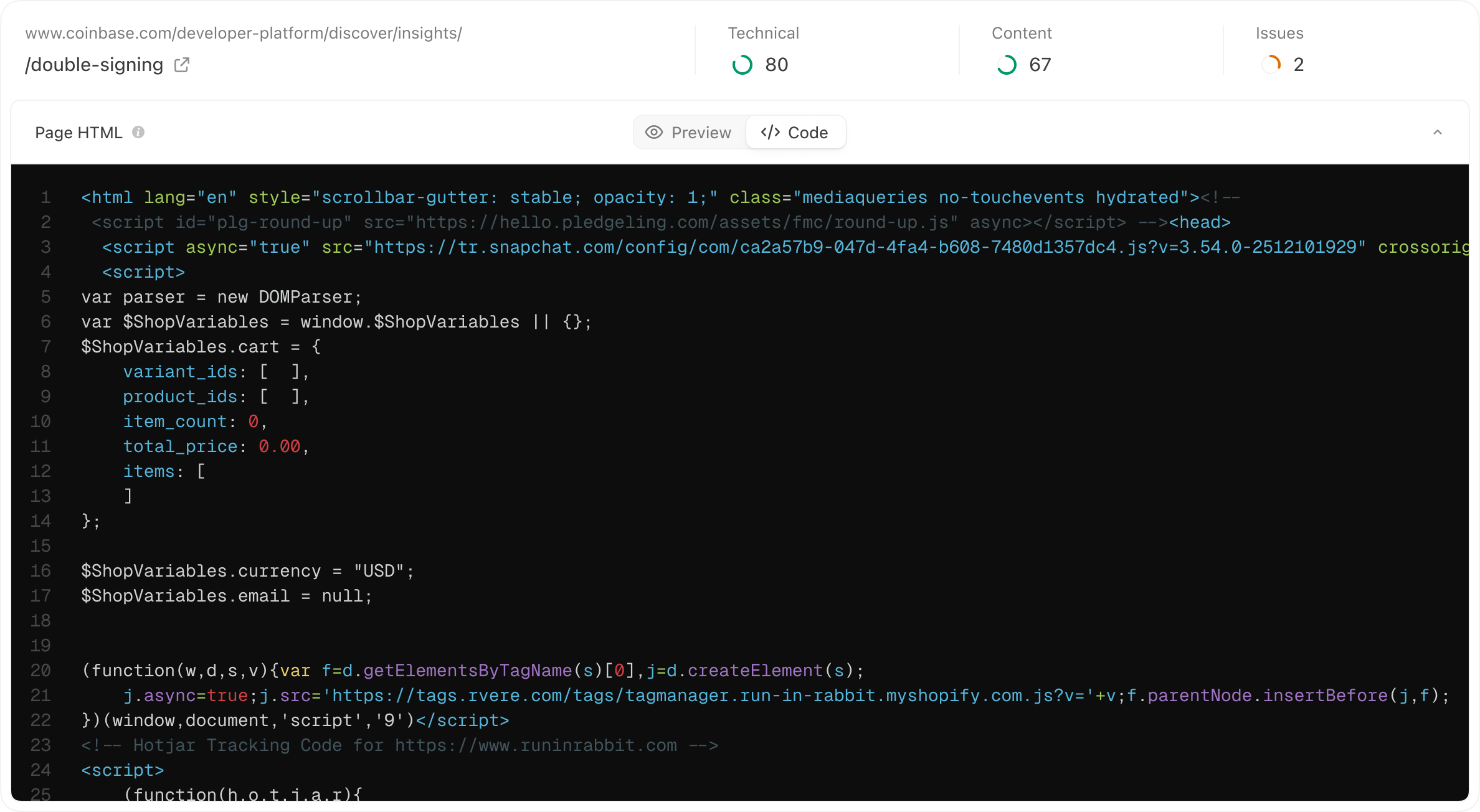
The **Page HTML** section helps you see what Meridian fetched and analyzed.
You may have options like:
* **Preview** (rendered view)
* **Code** (raw HTML)
This is useful because some sites look fine to users but expose very little content to crawlers (for example, content rendered only via client-side JavaScript).
## Understanding the page detail view
### Page HTML (what the crawler sees)
The **Page HTML** section helps you see what Meridian fetched and analyzed.
You may have options like:
* **Preview** (rendered view)
* **Code** (raw HTML)
This is useful because some sites look fine to users but expose very little content to crawlers (for example, content rendered only via client-side JavaScript).
 If the Preview/Code view suggests the crawler is not seeing important content, the fixes are usually:
* ensure important copy is server-rendered,
* improve internal linking and sitemap discovery,
* avoid gating key content behind scripts or blocked resources.
## Recommendations (how to read them)
Recommendations are typically grouped into:
* **Frontend & Content**
* **Backend & Technical**
Each recommendation usually includes:
* a clear issue title (e.g., “Add FAQ section…”),
* a category tag (Content Quality, Technical SEO, Meta Tags),
* and a priority/severity (e.g., Medium, High, Very good).
This makes it easy to decide what to do first.
## Turning a recommendation into a real improvement
Most recommendations include:
* a short explanation of why it matters,
* action steps,
* and “recommended questions” or structured guidance.
For example, if Pages recommends “Add FAQ section,” you’ll often see:
* 5–10 suggested questions,
* guidance on where to place the FAQ,
* and implementation options (template output).
### Keep answers factual and specific
FAQs work best when they:
* use language customers actually ask,
* give direct answers,
* include concrete details (numbers, constraints, proof).
## Copy-ready drafts (Meridian generates the first version)
For many recommendations, Meridian doesn’t just tell you what to fix — it generates a first draft you can copy and implement.
This is especially useful for:
* FAQ sections (draft questions and starter answers)
* FAQ schema and other structured data (copyable JSON-LD)
* consistent templates across many pages
You’ll often see an **Implementation Template** section with:
* format options (HTML / Markdown)
* **Copy** and **Download** actions
Use drafts as a starting point. It’s still important that the visible content on the page matches the structured data you publish (especially for schema).
## Measuring impact after fixing a page
After you implement changes and the next scan runs, you should typically see:
* fewer issues on that URL (and sometimes many URLs if it was a template fix),
* improved Technical/Content scores,
* and over time, better downstream outcomes:
* more owned citations (Analytics → Citations),
* better prominence on prompts tied to that page (Analytics → Prompts),
* more stable performance week over week.
## If Pages isn’t populating (your crawler is blocked)
If Pages is empty or not updating, our crawler is almost always being blocked by a security layer (commonly Cloudflare or Shopify bot protection). Meridian can’t analyze pages it can’t reach.
To fix this, allow-list **MeridianBot**.
### Crawler details (for allow-listing)
* **User-Agent:** `MeridianBot/1.0 (+https://docs.trymeridian.com/crawler; support@trymeridian.com)`
* **Custom header:** `X-Meridian-Crawler: website-analysis`
* **Purpose:** Website → Pages analysis (weekly crawl)
### Option 1 — Cloudflare WAF (most common)
If you use Cloudflare, create a custom rule that allows our crawler:
1. Log into Cloudflare and select your domain
2. Go to **Security → WAF → Custom Rules**
3. Click **Create rule**
4. Configure:
* **Rule name:** Allow Meridian Crawler
* **Expression:** `(http.user_agent contains "MeridianBot")`
* \*\*Action:\*\* **Skip** → choose **All remaining custom rules**
5. Click **Deploy**
### Option 2 — Shopify Bot Protection (Shopify Plus)
If you’re on Shopify Plus with native bot protection:
1. Go to **Shopify Admin → Settings → Bot protection**
2. Contact Shopify Plus Support and request allow-listing for:
* **User-Agent:** `MeridianBot`
After allow-listing, Pages should begin populating on the next scan cycle. If it’s still empty, contact support with your domain and the security provider you’re using.
If the Preview/Code view suggests the crawler is not seeing important content, the fixes are usually:
* ensure important copy is server-rendered,
* improve internal linking and sitemap discovery,
* avoid gating key content behind scripts or blocked resources.
## Recommendations (how to read them)
Recommendations are typically grouped into:
* **Frontend & Content**
* **Backend & Technical**
Each recommendation usually includes:
* a clear issue title (e.g., “Add FAQ section…”),
* a category tag (Content Quality, Technical SEO, Meta Tags),
* and a priority/severity (e.g., Medium, High, Very good).
This makes it easy to decide what to do first.
## Turning a recommendation into a real improvement
Most recommendations include:
* a short explanation of why it matters,
* action steps,
* and “recommended questions” or structured guidance.
For example, if Pages recommends “Add FAQ section,” you’ll often see:
* 5–10 suggested questions,
* guidance on where to place the FAQ,
* and implementation options (template output).
### Keep answers factual and specific
FAQs work best when they:
* use language customers actually ask,
* give direct answers,
* include concrete details (numbers, constraints, proof).
## Copy-ready drafts (Meridian generates the first version)
For many recommendations, Meridian doesn’t just tell you what to fix — it generates a first draft you can copy and implement.
This is especially useful for:
* FAQ sections (draft questions and starter answers)
* FAQ schema and other structured data (copyable JSON-LD)
* consistent templates across many pages
You’ll often see an **Implementation Template** section with:
* format options (HTML / Markdown)
* **Copy** and **Download** actions
Use drafts as a starting point. It’s still important that the visible content on the page matches the structured data you publish (especially for schema).
## Measuring impact after fixing a page
After you implement changes and the next scan runs, you should typically see:
* fewer issues on that URL (and sometimes many URLs if it was a template fix),
* improved Technical/Content scores,
* and over time, better downstream outcomes:
* more owned citations (Analytics → Citations),
* better prominence on prompts tied to that page (Analytics → Prompts),
* more stable performance week over week.
## If Pages isn’t populating (your crawler is blocked)
If Pages is empty or not updating, our crawler is almost always being blocked by a security layer (commonly Cloudflare or Shopify bot protection). Meridian can’t analyze pages it can’t reach.
To fix this, allow-list **MeridianBot**.
### Crawler details (for allow-listing)
* **User-Agent:** `MeridianBot/1.0 (+https://docs.trymeridian.com/crawler; support@trymeridian.com)`
* **Custom header:** `X-Meridian-Crawler: website-analysis`
* **Purpose:** Website → Pages analysis (weekly crawl)
### Option 1 — Cloudflare WAF (most common)
If you use Cloudflare, create a custom rule that allows our crawler:
1. Log into Cloudflare and select your domain
2. Go to **Security → WAF → Custom Rules**
3. Click **Create rule**
4. Configure:
* **Rule name:** Allow Meridian Crawler
* **Expression:** `(http.user_agent contains "MeridianBot")`
* \*\*Action:\*\* **Skip** → choose **All remaining custom rules**
5. Click **Deploy**
### Option 2 — Shopify Bot Protection (Shopify Plus)
If you’re on Shopify Plus with native bot protection:
1. Go to **Shopify Admin → Settings → Bot protection**
2. Contact Shopify Plus Support and request allow-listing for:
* **User-Agent:** `MeridianBot`
After allow-listing, Pages should begin populating on the next scan cycle. If it’s still empty, contact support with your domain and the security provider you’re using.